> ## Documentation Index
> Fetch the complete documentation index at: https://docs.tringg.ai/llms.txt
> Use this file to discover all available pages before exploring further.
# Review & Go Live
> The final onboarding step — review everything and activate your outlet.
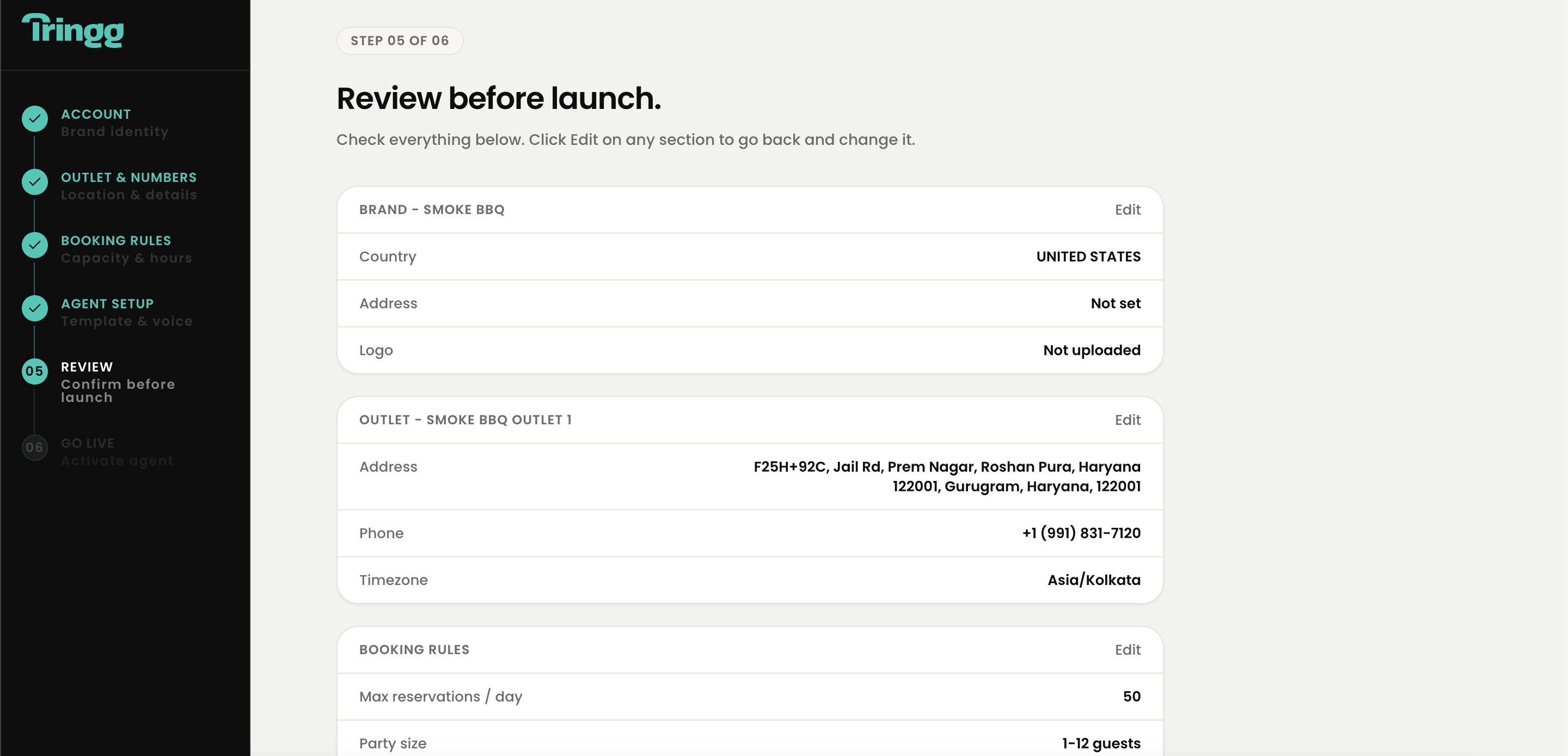
The last step shows a summary of everything you've configured, so you can double-check before your AI agent starts taking real calls.
## What's on the review screen
* **Brand & Account** — name, email, status
* **Outlet details** — name, address, outlet phone, and your Tringg number
* **Booking Rules** — confirmation mode, max reservations, party size, duration, open days
* **AI Agent** — selected template, voice, and status
Each section has an **Edit** link that takes you back to that step without losing anything you've already entered elsewhere.
 ## Going live
The **Go Live** button only enables once every mandatory field across all steps is filled in.
This activates your agent and links it to your outlet. Going live is a deliberate, single-press action — nothing activates automatically before you confirm.
You're redirected to your dashboard, and a confirmation email is sent — useful if you close the browser before finishing.
You can always come back and use the **Back** button during onboarding without losing data you've already entered.
Completing this step does not make your outlet active yet — see [Activate Your Outlet](/onboarding/activate-your-outlet) for the billing step that actually turns calls on.
Once you're live, head to your [Overview dashboard](/) to see today's activity, or jump straight into [Reservations](/reservations/overview).
## Going live
The **Go Live** button only enables once every mandatory field across all steps is filled in.
This activates your agent and links it to your outlet. Going live is a deliberate, single-press action — nothing activates automatically before you confirm.
You're redirected to your dashboard, and a confirmation email is sent — useful if you close the browser before finishing.
You can always come back and use the **Back** button during onboarding without losing data you've already entered.
Completing this step does not make your outlet active yet — see [Activate Your Outlet](/onboarding/activate-your-outlet) for the billing step that actually turns calls on.
Once you're live, head to your [Overview dashboard](/) to see today's activity, or jump straight into [Reservations](/reservations/overview).